
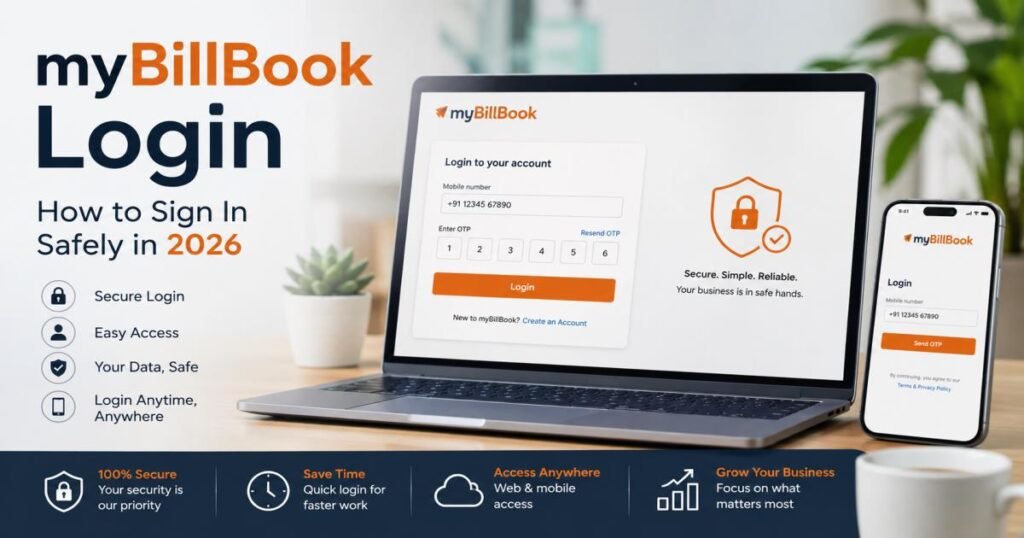
MyBillBook login starts with your registered mobile number and a one-time password sent by SMS. You open the official website or the official app, enter the number, type the OTP, and reach your business dashboard. From that point, you can create invoices, check stock, view payments, and handle party records without extra steps.
myBillBook serves small and medium businesses across India. Shop owners, retailers, wholesalers, and distributors use it daily for GST and non-GST billing, inventory tracking, and payment records. Access works on both the web platform and the mobile apps for Android and iOS. The system ties the account to one mobile number so the same login method works on any supported device.
What Is myBillBook Login?
The myBillBook login screen checks that the person requesting access controls the registered mobile number. It then opens the full set of business tools linked to that account.
Signing into an existing account differs from creating a new one. Existing users enter the registered number and complete the OTP step. New users first register the number, verify it once, and then use the same flow for every later visit.
The registered number and OTP matter because they form the main gate to invoices, stock lists, customer and supplier details, outstanding balances, and GST reports. Without a successful login, those records stay locked.
How to Complete myBillBook Login
Log in Through the Official Website
Open a browser and type mybillbook in.
Find the Login button, usually at the top of the page.
Type the exact mobile number registered with the account.
Request the OTP. The code is sent via SMS within seconds.
Enter the code and confirm.
You then land on the dashboard. Some users who stay logged in on the mobile app can scan a QR code shown on the web login screen for quicker entry. Always confirm the address bar shows the official domain and a secure connection before typing any details.
Log in through the myBillBook Mobile App
Download the official app from the Google Play Store or the Apple App Store. Search for myBillBook and install only the version from the official publisher.
Open the app.
Enter the registered mobile number.
Request and type the OTP.
The app then shows the same dashboard available on the web. Features such as invoice creation, stock checks, and payment recording work on both platforms. Data updates automatically when the device has an internet connection.
myBillBook Login With OTP: What You Need to Know
OTP login sends a short code to the registered mobile number. You type that code before it expires, usually within a few minutes. The system accepts the code only once and only for that login attempt.
The code travels by SMS. Delivery can slow down during network congestion or if the phone filters messages from unknown senders.
If the OTP fails to arrive:
- Wait one full minute and check the inbox again.
- Confirm every digit of the mobile number.
- Switch between Wi-Fi and mobile data.
- Request a fresh code.
- Restart the phone or the app.
Never share the OTP. Official support never asks for it. The registered number stays the single key to the account. You cannot change that number yourself; you must contact support and raise a formal request.
How to Log In to myBillBook From a New Device
Install the official app on the new phone or tablet, or open mybillbook.in on the new computer.
Enter the same registered mobile number.
Complete the OTP step.
After login, open the dashboard and confirm that invoices, party lists, and stock figures appear as expected. The platform allows the same account on multiple devices at once. Changes made on one device appear on the others once an internet connection is present. This helps owners who move between the shop counter, home office, and travel.
myBillBook Login Problems and How to Fix Them
OTP Not Received
Check signal strength, wait sixty seconds, confirm the number, request a new code, clear any SMS filters, and restart the device. If the code still fails, contact support with the registered number.
Incorrect Mobile Number
Go back and retype every digit carefully. The system sends the OTP only to the number already linked to the account.
Login Page Not Loading
Refresh the page, try a different browser, clear cache and cookies for the site, or switch networks. Confirm you are on the official mybillbook.in address.
Internet Connection Problems
Move between Wi-Fi and mobile data. Restart the router or the phone. A stable connection is required both for OTP delivery and for data to load after login.
App Is Outdated
Open the Play Store or App Store, search for myBillBook, and install the latest update. Older versions sometimes block the login screen or prevent proper data sync.
Browser or Cache Problems
Clear site data, open an incognito or private window, or switch browsers. Old cached files can stop the login page from appearing correctly.
Unable to Access the Registered Phone Number
If the SIM is lost or the number is no longer active, you cannot receive the OTP. Contact official support at once and supply any available account details so they can help restore access.
Forgot Password or Account Access Problems
Although OTP forms the main login path, a Forgot Password link appears on the login screen for accounts that previously set a password. Follow the on-screen steps. You will still need the registered mobile number or other verification details.
OTP login and password recovery serve separate purposes. Most users rely only on the mobile number and code. If both methods fail, contact support rather than repeating incorrect attempts.
How to Keep Your myBillBook Account Safe
Use only the official website and the official apps from the Play Store or App Store.
Never share OTPs or account details with anyone.
Refuse to enter login information on unfamiliar sites or links that arrive by message or email.
Keep the app and browser updated.
Log out of devices you no longer use.
Protect the phone itself with a PIN, pattern, or biometric lock.
These habits protect invoices, stock records, and payment data more effectively than any single technical setting.
What Can You Access After myBillBook Login?
Once login succeeds you open:
- the main dashboard with key balances and recent activity
- sales and purchase invoices
- inventory lists and stock movement
- customer and supplier records with ledgers
- payment entries and outstanding amounts
- GST reports and related compliance tools
- business settings, invoice templates, and user permissions
The same account holds all these records. They become available the moment the OTP verification finishes.
myBillBook Login on Mobile vs Web
| Feature | Mobile App | Web |
| Account access | Yes | Yes |
| Business management | Yes | Yes |
| Invoice management | Yes | Yes |
| Inventory access | Yes | Yes |
| Best suited for | On-the-go work | Desktop or laptop work |
Both platforms give full access to core tools. The app fits quick checks at the counter or while travelling. The web version often feels more comfortable for longer sessions, bulk uploads, or work that needs a larger screen and keyboard. Pick the option that matches the task at hand.
Is myBillBook Login Safe?
The platform relies on OTP authentication linked to the registered mobile number. Data stays stored in the cloud and remains available after any later login with the same number and code. Automatic sync keeps records consistent across devices.
Safety also depends on user actions. Staying on official channels, protecting the OTP, updating the app, and logging out of unused devices reduce risk. Always check the address bar and the app publisher before entering details.
Final Checklist Before Using myBillBook Login
- Open only the official website or official apps.
- Type the correct registered mobile number.
- Keep the OTP private.
- Confirm a working internet connection.
- Update the app when a new version appears.
- Contact official support if access stays blocked after basic checks.
The safest path for myBillBook login remains the official website or app, the registered mobile number, and the OTP. Protect the code, stay on genuine channels, and the dashboard with all invoices, stock, and payment records opens without extra risk.
Common Questions About myBillBook Login
Can I use myBillBook on multiple devices?
Yes. Enter the same registered mobile number and OTP on each device. Data updates automatically when online.
Can I log in without my registered mobile number?
No. The main method requires that number and the OTP. Without access to the number you need help from official support.
What should I do if I don’t receive the OTP?
Confirm the number, check the network, wait, request a new code, clear filters, or restart the device. Contact support if the problem continues.
Can I access myBillBook from a computer?
Yes. Open mybillbook. in in any current browser and complete the mobile-number-plus-OTP steps.
How do I recover my account?
Use the Forgot Password link if a password exists, or contact support with the registered details. Changing the registered mobile number requires a support request.
Can I change my registered mobile number?
You cannot change it yourself. Raise a request with customer support.
Is the myBillBook mobile app available for Android and iPhone?
Yes. Official versions exist on the Google Play Store and the Apple App Store.
Why is my myBillBook login not working?
Common causes include a mistyped number, delayed OTP, outdated app, weak internet, or browser cache. Work through the fixes listed earlier or contact support.
How can I contact myBillBook support?
Call or message +91-7400417400 on WhatsApp, or email support@flobiz.in. The knowledge base at knowledge.mybillbook.in also contains help articles.