
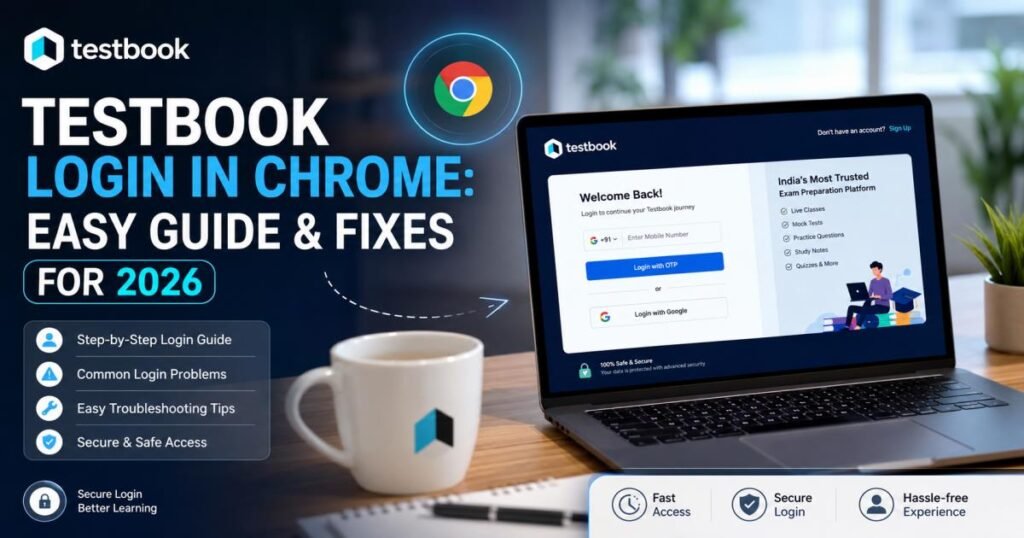
Testbook login in Chrome means signing into your account through the Google Chrome browser on a computer or phone. Open Chrome, visit the official Testbook website, enter your registered mobile number or email, complete the OTP or Google check, and open your dashboard with mock tests and courses.
Most people finish the process in under a minute when the connection is steady and the browser is clean. Problems usually come from old cookies, blocked extensions, weak networks, or wrong account details. This guide shows the exact steps, quick fixes, and ways to keep the session stable so you can study without interruptions.
What Is Testbook Login in Chrome?
Testbook login in Chrome is the way you open your account inside the Chrome browser instead of relying only on the mobile app. Chrome works on Windows, Mac, laptops, and Android phones.
Testbook is an online platform that helps students prepare for government and competitive exams. It gives mock tests, live classes, study notes, previous papers, and performance reports for exams such as SSC, banking, railways, teaching, and state services. Using Chrome lets you see more content on a bigger screen and switch between tabs while you practice.
How to Complete Testbook Login in Chrome
These six steps get most users into their account quickly.
Step 1: Open Google Chrome
Start Chrome on your device. An updated version loads pages more reliably.
Step 2: Visit the Official Testbook Website
Type testbook.com in the address bar and press Enter. Stick to the official address. Random links from search results can lead to fake pages.
Step 3: Select the Login Option
Find the Login or Sign In button, usually at the top right of the homepage, and click it. You will see choices for mobile number, email, or Google.
Step 4: Enter Your Account Details
Type the mobile number or email linked to your account. Many users receive an OTP instead of typing a password.
Step 5: Complete the Verification Step
Enter the OTP that arrives on your phone or email. If you choose Google, pick the correct account and confirm. Finish any CAPTCHA that appears.
Step 6: Open Your Testbook Dashboard
After verification, you land on the dashboard. From here, you can start mock tests, watch classes, or check your scores.
Always use the official website. Testbook runs its own login page and support channels. Entering details on unknown pages puts the account at risk.
How to Log In to Testbook With Google in Chrome
Many accounts support Google sign-in. On the login page click the Google button. A window appears asking you to choose an account. Select the one tied to your Testbook profile and approve access.
If the account window does not open:
- Check whether Chrome blocked the pop-up. Click the blocked-pop-up icon in the address bar and allow testbook.com.
- Confirm you are signed into Chrome with a Google account.
- Turn off ad blockers or privacy tools for a moment.
- Refresh the page or open a new tab.
These small checks usually bring the selection window back.
Testbook Login in Chrome Not Working? Try These Fixes
When the page fails to load, the OTP never arrives, or the button does nothing, work through these fixes in order.
Check Your Internet Connection
A weak signal stops the page or the OTP message. You can switch between Wi-Fi and mobile data, or turn airplane mode on and off. A stable link typically solves the first problem.
Refresh the Testbook Login Page
To refresh the page, press Ctrl + R if you’re using Windows, or Cmd + R if you’re on a Mac. A fresh load clears temporary page errors.
Clear Chrome Cache and Cookies
Old data often blocks the login form.
- Press Ctrl + Shift + Delete (Windows) or Cmd + Shift + Delete (Mac).
- Set the time range to All time.
- Tick Cookies and other site data plus Cached images and files.
- Click Clear data.
Restart Chrome and try again. Cookies keep the session alive; outdated ones break it.
Try Chrome Incognito Mode
Open a new Incognito window with Ctrl + Shift + N or Cmd + Shift + N. Go to testbook.com and log in. Incognito skips extensions and saved data, so it shows whether the regular profile is the cause.
Disable Problematic Chrome Extensions
Ad blockers, VPNs, and privacy tools sometimes stop the login scripts.
- Type chrome://extensions/ in the address bar.
- Turn every extension off.
- Reload the Testbook page.
If login works, turn extensions back on one at a time until you find the one that interferes.
Update Google Chrome
Click the three dots, choose Help, then About Google Chrome. Install any update and restart the browser. Newer versions fix many loading bugs.
Restart Chrome and Your Device
Close every Chrome window. Restart the computer or phone. Open Chrome again and return to the login page.
Try Another Network or Browser
Move to a different Wi-Fi or mobile network. Or open the same page in Edge or Firefox. This test tells you whether the issue sits inside Chrome or outside it.
Why Does Testbook Keep Logging Me Out in Chrome?
Sessions end for several everyday reasons:
- The system closes inactive sessions after a set time for safety.
- Chrome deletes cookies on exit or blocks them.
- You stay logged in on more than one device at once.
- Private or Incognito mode never saves the login.
- A short website glitch forces a new check.
To stay signed in longer, allow cookies for testbook.com, stop Chrome from clearing data on exit, and sign out of other devices when you finish.
Testbook Login OTP Not Working in Chrome
OTP delays frustrate many users. Work through these checks:
Check Your Registered Mobile Number
Confirm the exact number linked to the account. One wrong digit stops the message.
Wait Before Requesting Another OTP
Wait at least 30–60 seconds. Rapid requests can slow delivery. Also check the spam folder if the OTP arrives by email.
Check Your Network and SMS Service
Weak signal or carrier blocks can delay the text. Move to a stronger network area or test with another phone if possible.
Refresh the Login Page
Reload the page and ask for a new OTP.
Try Again in Incognito Mode
Open Incognito, return to the official site, and request the code once more. This removes extension interference.
If the OTP still fails, switch to Google sign-in or contact support with your registered number.
What to Do If You Forgot Your Testbook Login Details
On the login page look for the Forgot Password link. Enter the registered mobile number or email. Testbook sends a reset link or OTP so you can create a new password.
If you no longer control the registered phone or email, write to official support and include identity proof. Avoid any third-party recovery sites. They are not safe.
How to Make Testbook Work Better in Chrome
A few habits keep the site fast and the login reliable:
Keep Chrome Updated
Updates fix bugs and improve security. Check for them regularly.
Allow Necessary Cookies
In Chrome settings go to Privacy and security → Cookies and allow cookies for testbook.com. This keeps the session active.
Remove Unused Extensions
Fewer extensions mean fewer conflicts and quicker page loads.
Keep Enough Browser Storage Available
Clear old cache and downloads from time to time so Chrome has space to run.
Use a Stable Internet Connection
A steady link prevents mid-login drops and half-loaded pages.
Is Testbook Login Safe in Google Chrome?
The process is safe when you stay on the official site. Check that the address bar shows testbook.com and the lock icon before you type any details.
Never share an OTP or password. Testbook staff never ask for them. Skip saving passwords on shared or public computers. Always sign out after using a shared device.
Testbook uses cookies and session IDs to keep you logged in. Their privacy pages explain how these work. Stick to the official website and support channels for the safest path.
Testbook Login in Chrome vs Mobile App
| Feature | Chrome | Mobile App |
| Account access | Yes | Yes |
| Mock tests | Yes | Yes |
| Courses | Yes | Yes |
| Browser required | Yes | No |
| Best for desktop study | Yes | Limited |
Both give full access to tests and courses. Chrome suits longer study sessions on a larger screen. The app works better when you are on the move. Many students switch between the two.
When Testbook Login Problems May Be on Testbook’s Side
Sometimes the trouble sits on the platform itself. High traffic, short maintenance windows, or temporary authentication errors can affect the login page for everyone.
If the same error appears in other browsers, the official site feels slow for friends, or support confirms an outage, wait a short while and try again. When the browser fixes stop helping, contact official support through the email or helpline listed on the Testbook website.
Final Checklist for Testbook Login in Chrome
- Open the official Testbook website.
- Confirm your mobile number or email.
- Check the internet connection.
- Refresh the page.
- Clear cache and cookies if needed.
- Test Incognito mode.
- Turn off extensions that may interfere.
- Update Chrome and restart the device.
- Reach out to official support if the problem continues.
Frequently Asked Questions About Testbook Login in Chrome
How do I log in to Testbook using Chrome?
Open Chrome, go to testbook.com, click Login, enter your mobile number or email, finish the OTP or Google step, and the dashboard opens.
Why is Testbook not opening in Chrome?
Check the connection, refresh the page, clear cache, try Incognito, disable extensions, or update Chrome. These steps fix most loading problems.
Why is my Testbook OTP not arriving?
Confirm the registered number, wait before requesting again, check network and SMS service, refresh the page, or open Incognito mode.
Can I use Testbook on Chrome without the app?
Yes. The website in Chrome gives full access to mock tests, courses, and study material.
Why does Testbook keep logging me out?
Sessions expire after inactivity, cookies are blocked or cleared, multiple devices stay active, or private mode is in use. Allow cookies and sign out of other devices.
How do I clear Chrome cookies for Testbook?
Press Ctrl + Shift + Delete (or Cmd + Shift + Delete), choose All time, tick Cookies and cached images, then clear the data. Restart Chrome.
Is Testbook login safe on Chrome?
Yes, when you stay on the official site, never share OTP or passwords, and sign out on shared devices.
What should I do if Testbook login still does not work?
After the checklist above, contact official Testbook support with your registered details. They can check account-side issues.
Follow these steps and the login stays reliable. You can then focus on the mock tests and courses without browser delays.