
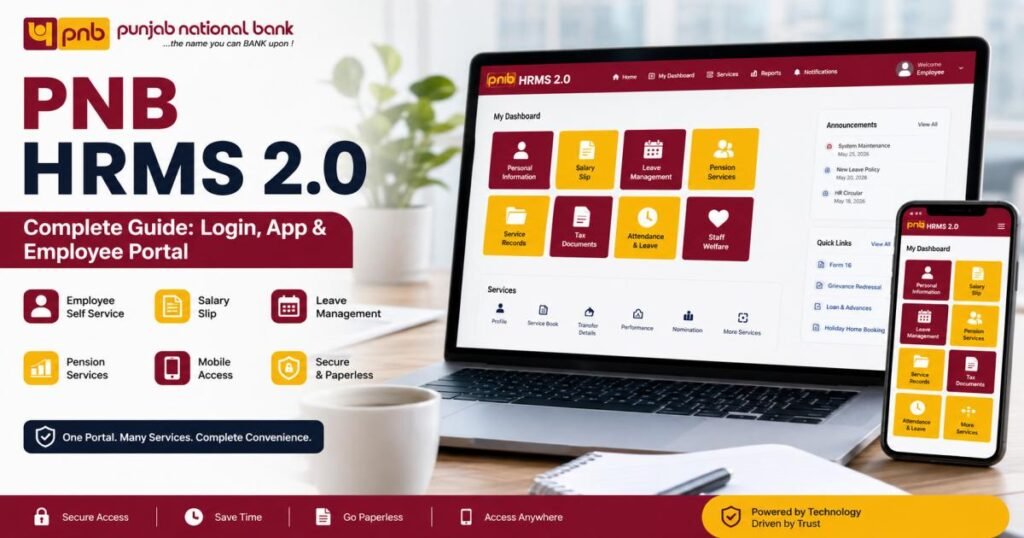
PNB HRMS 2.0 is the official human resource management system for Punjab National Bank employees. Also known as PNB Parivar, this digital portal allows active staff and retired personnel to access their salary slips, submit leave requests, and update personal records online.
Instead of waiting for physical paperwork at the branch HR desk, you can manage your employment details directly from a computer or smartphone. This guide provides step-by-step instructions for the PNB employee login, app installation, and common troubleshooting fixes.
What Is PNB HRMS 2.0?
PNB HRMS 2.0 is a centralized web platform built specifically for Punjab National Bank staff. The bank launched this system to handle administrative tasks digitally, connecting branch employees directly to the central HR department.
The system tracks biometric attendance, processes monthly payroll, and manages employee self-service (ESS) requests. By shifting from paper-based files to this digital integration, the bank typically reduces administrative processing times from days to mere minutes.
Key Features of PNB HRMS 2.0
The PNB Parivar portal includes specific modules designed to handle different stages of your career. Here are the core features:
Employee Self-Service (ESS)
The ESS module gives you direct control over your basic information. You can update your contact number, change your residential address, and submit mandatory asset and liability declarations. You can also raise claims for travel expenses or newspaper allowances directly through this dashboard.
Salary Slip Download
The payroll module automatically calculates your base pay, allowances, and tax deductions. You can view, download, and print your monthly PNB staff salary slip and annual tax statements instantly, eliminating the need to request printed copies from the branch manager.
Leave Management
The digital leave system replaces physical applications. You can select your leave type, input the dates, and submit the request. Managers typically approve or deny these requests within 24 to 48 hours, and the system updates your remaining balance immediately.
Attendance & Service Records
The portal connects directly to the bank’s biometric punch-in hardware. This digital integration ensures your daily attendance logs are accurate without manual entry errors. You can also review your complete service history, including past branch postings.
Pension Services
Retired staff use the dedicated Pension Sahayak section within the portal. Pensioners can download monthly pension slips, track Pension Payment Order (PPO) details, and submit required annual documents.
Benefits of Using PNB HRMS 2.0
- Saves time: You skip the physical queues. Tasks such as loan applications and address updates can be completed easily with just a few clicks.
- Secure access: The platform uses specific 7-digit Employee IDs, strong passwords, and Captcha verification to protect financial data.
- Paperless HR management: The shift from paper to digital integration prevents lost documents and creates a flawless, permanent record.
- Easy document access: The system archives your past pay stubs and Form 16 documents. You can typically retrieve them within seconds, especially during tax season.
- Mobile accessibility: The dedicated mobile application lets you check your profile or mark attendance while away from a desktop computer.
PNB HRMS 2.0 Login Process (Step-by-Step)
Accessing your dashboard requires specific credentials provided by the bank. Follow these steps for a successful PNB employee login.
Requirements Before Login
- Your 7-digit Employee User ID.
- Your current, active password.
- A stable internet connection.
- Your registered mobile phone will receive an OTP if required.
Log in through the Official Portal
- Open a secure web browser like Google Chrome or Microsoft Edge.
- Navigate to the official website: hrms.pnb.bank.in.
- Click the “HRMS” button on the main page.
- Please enter your User ID and Password in the designated fields.
- Please enter the Captcha code exactly as it appears in the image.
- Click Sign-In to open your dashboard.
First-Time Login Guide
Newly hired employees receive a default password from their branch IT or HR officer. Enter your 7-digit ID and this default password on the login screen. The system will immediately prompt you to create a new, secure password before letting you view your profile.
Login Security Tips
- Never write your password on notes near your workspace.
- Verify the website address begins with https:// before typing credentials.
- Always click the “Logout” button when finished, particularly on shared branch computers.
How to Reset PNB HRMS 2.0 Password
Passwords expire, and people forget them. The portal offers a direct reset process.
Forgot Password Steps
- Go to the main login page at hrms.pnb.bank.in.
- If you have forgotten your password, please click on the “Forgot Password” link located beneath the login form.
- Enter your User ID and click Continue.
- Retrieve the OTP sent to your registered mobile number or email address.
- Type the OTP into the portal and follow the prompts to set a new password.
Password Creation Guidelines
Your new password requires a mix of character types. You must include at least one uppercase letter, one lowercase letter, one number, and one special character (such as @ or #). Please avoid using your name or date of birth.
Account Locked? What to Do
If you enter the wrong password multiple times, the system locks your account to prevent unauthorized access. The online reset link will not work while the account is locked. You must contact your branch IT administrator to unlock your ID manually.
How to Download Salary Slip from PNB HRMS 2.0
You need your pay stub for loan applications and tax filing. Here is the precise location to find it.
Monthly Salary Slip
- Please log in to the portal using your ID and password.
- Please click on the “Employee Self Service” (ESS) tab.
- Select the Salary & TDS-related details option.
- Click PNB Salary Slip.
- Choose the specific month and year, then click download to save the PDF.
Annual Salary Statement
To view your total gross and net pay for the entire financial year, open the payroll section and click “Annual Statement.” Select the current or previous financial year to generate a complete summary.
Form 16 Download
At the end of the financial year, the bank uploads your Form 16. You can locate it under the tax section of the ESS menu. Download this PDF to file your Income Tax Returns (ITR).
Leave Management in PNB HRMS 2.0
The digital leave module organizes your time off efficiently.
Apply for Leave
Open the “Leave Management” section and click “Apply Leave.” Select your leave category (such as Casual Leave or Privilege Leave), choose your start and end dates, and add a brief reason. Click submit to send the request to your reporting manager.
Check Leave Balance
The system displays your exact leave balance in real-time. Before applying for time off, check this dashboard to see how many days you have available for the current calendar year.
Leave Approval Status
Check the “Application Status” tab to see if your manager has reviewed your request. The dashboard updates immediately to show “Pending,” “Approved,” or “Rejected.”
Leave History
The “Leave History” tab archives every approved day off you have taken since the bank transitioned to digital integration. You can review your past attendance patterns easily.
PNB HRMS 2.0 Mobile App
For employees on the move, the bank offers a smartphone application.
Features of the Mobile App
The mobile application, frequently referred to as PNB Parivar 2.0 or PNB Saksham, mirrors the web portal. You can view your salary slip, read internal circulars, apply for leave, and mark your daily attendance directly from your phone.
Android Installation Guide
- Open the Google Play Store.
- Search for “PNB Parivar 2.0” or “PNB Saksham”.
- Verify the publisher is Punjab National Bank.
- Tap Install.
iPhone Availability
Apple users can access the app through the iOS ecosystem.
- Open the App Store.
- Search for the official PNB HR application or use the direct download link provided in internal bank emails.
- Tap Get to install the app.
Login Using the App
Open the app and type your 7-digit Employee ID. Enter the OTP sent to your phone. The app will then ask you to create a short numeric passcode (MPIN). For future logins, you only need to type this MPIN.
Employee Services Available on PNB HRMS 2.0
Beyond daily tasks, the portal tracks your long-term career progression.
Personal Profile
Your profile stores your emergency contacts, family details, and permanent address. Keep this updated through the ESS menu so the bank can reach you in emergencies.
Service Book
The digital Service Book replaces the old physical ledger. It records your exact joining date, educational qualifications, and a timeline of every branch you have worked at during your tenure.
Transfer Details
The portal updates immediately when transfer orders are released. You can view your new posting location and reporting date online, eliminating the wait for physical transfer letters.
Promotion Records
You can apply for internal promotion exams through the system. The portal also hosts admit cards, shortlisting criteria, and final selection results for various officer cadres.
Performance Records
Managers conduct annual appraisals digitally. You fill out your self-assessment form online, and your reporting officer adds their evaluation. You can review your final performance score securely in this module.
Pensioner Services in PNB HRMS 2.0
The bank ensures retired employees retain easy access to their benefits.
Pension Slip
Retirees log into the Pension Sahayak section to view and download their monthly pension slips, detailing their exact payout and any applicable tax deductions.
PPO Details
Your Pension Payment Order (PPO) number confirms your retirement status. The profile section clearly lists your PPO number, total years of service, and retirement date.
Life Certificate Information
Pensioners must submit a life certificate annually. The portal integrates with Jeevan Pramaan, allowing retirees to verify their status via Face Authentication or Video-Customer Identification without visiting a branch.
Medical Benefits
Retirees manage their IBA Group Medical Insurance through the system. They can submit forms for renewal consent, verify policy limits, and review the list of approved hospitals in the network.
Common PNB HRMS 2.0 Login Problems and Solutions
Technical errors happen. Use these quick fixes for standard issues.
Invalid Credentials
Cause: You typed the wrong ID or password.
Solution: Check if your Caps Lock key is on. Retype your details slowly, as passwords are case-sensitive.
OTP Not Received
Cause: Network congestion or an outdated phone number in the system.
Solution: Wait 60 seconds and click “Resend OTP.” If it consistently fails, check with HR to ensure your current number is linked to your profile.
Password Expired
Cause: The bank mandates periodic password changes for security.
Solution: Follow the on-screen instructions to create a new password immediately.
Website Not Opening
Cause: Server maintenance or a full browser cache.
Solution: Clear your browser history and cookies. If the site still fails to load, the bank is likely running scheduled late-night maintenance. Try again in an hour.
Browser Compatibility Issues
Cause: Using an outdated web browser like Internet Explorer.
Solution: Switch to the latest version of Google Chrome, Firefox, or Microsoft Edge for the best experience.
Security Best Practices for PNB HRMS 2.0 Users
Treat this portal with the same caution as your personal banking app.
- Keep your 7-digit ID and password private.
- Always keep your One-Time Password (OTP) and Mobile Personal Identification Number (MPIN) private. Never share them with anyone.
- Update your mobile application immediately when the App Store or Play Store shows a new version.
- Please make sure to log out completely and close the browser window when you are finished.
PNB HRMS 2.0 vs Traditional HR Management
The transition from physical paperwork to digital integration changes how the bank operates.
| Feature | PNB HRMS 2.0 | Traditional HR |
| Self-Service Updates | ✔ | ✘ |
| Online Leave Requests | ✔ | Partial |
| Salary Slip Access | Instant | Manual/Delayed |
| Mobile Access | ✔ | Limited |
| Paperless Storage | ✔ | ✘ |
Latest Updates in PNB HRMS 2.0 (2026)
As of 2026, the portal has rolled out several specific updates:
- Medical Insurance (2025-26): The portal now hosts the updated SOPs for the IBA Group Medical Insurance Policy renewals for both active and retired staff.
- Tax Declarations: Employees can submit their new Tax Regime Option forms directly in the ESS module for the 2025-26 financial year.
- PwBD Promotions: Admit cards and testing locations for the April 2026 clerical-to-officer promotion exams are now live on the dashboard.
Best Practices for Using PNB HRMS 2.0 Efficiently
- Keep Contact Info Current: Update your phone number in the ESS profile the day you change it to avoid missing crucial OTPs.
- Review Notices Weekly: The HR department posts circulars and holiday schedules on the notice board. Check it every Monday.
- Use the Mobile App: Install the app to punch your attendance and check leave balances quickly without turning on a desktop computer.
Final Thoughts
Recap of key features
PNB HRMS 2.0 centralizes payroll, attendance, leave management, and pensioner services into a single, accessible platform.
Why PNB HRMS 2.0 simplifies HR services
By providing direct access through the Employee Self-Service tool, the system removes administrative delays. You no longer need to submit paper forms and wait days for a response. The shift to digital integration means data updates are instant, accurate, and secure.
Secure Usage Reminder
Always verify that you are on the official PNB bank.in website before entering your details. Protect your login credentials, update your app regularly, and use the platform to manage your banking career efficiently.
Frequently Asked Questions (FAQs)
What is PNB HRMS 2.0?
It is the official human resource management system (PNB Parivar) used by Punjab National Bank to handle employee payroll, leave requests, attendance, and administrative records digitally.
Who can access PNB HRMS 2.0?
Active employees of Punjab National Bank and officially retired staff members (pensioners) have authorized access to the portal.
Is PNB HRMS 2.0 available for pensioners?
Yes. Pensioners use the dedicated Pension Sahayak section to download pension slips, manage medical insurance, and submit annual life certificates.
How do I log in to PNB HRMS 2.0?
Navigate to hrms.pnb.bank.In, enter your 7-digit Employee User ID, type your password, fill in the Captcha code, and click Sign-In.
How can I reset my password?
Click the “Forgot Password” link on the login page, enter your User ID, submit the OTP sent to your phone, and create a new password following the on-screen rules.
How do I download my salary slip?
Log in, open the “Employee Self Service” tab, select “Salary & TDS-related details,” click “PNB Salary Slip,” choose your desired month, and download the PDF file.
Is there a PNB HRMS 2.0 mobile app?
Yes, you can download the “PNB Parivar 2.0” (or PNB Saksham) application for free from the Google Play Store for Android or the App Store for iOS devices.